


How to create an inventory package
Want to offer your customers bundles of activities at a discount? You can do so by creating Packages.
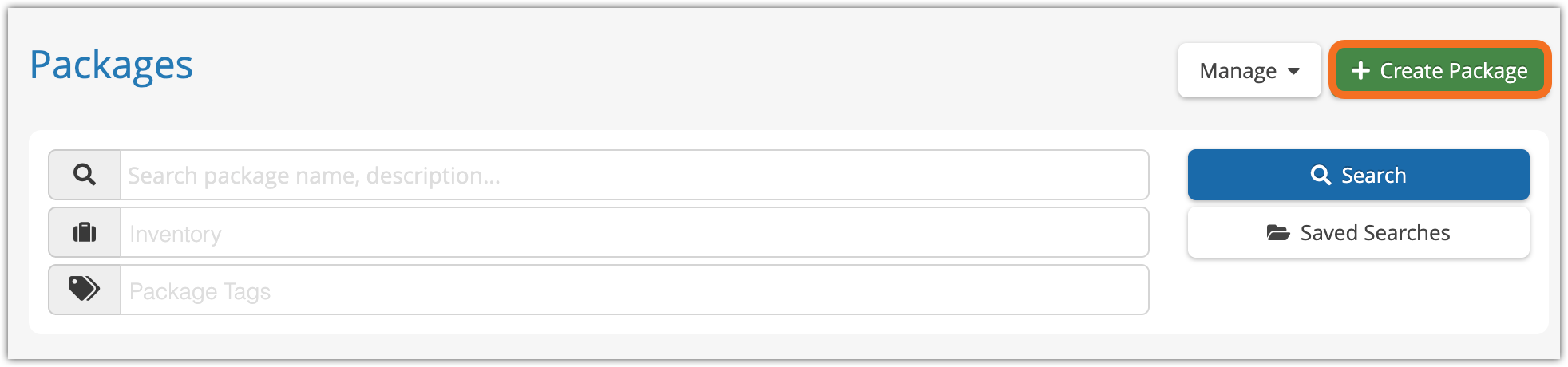
Start by going to Inventory > Packages in the main menu.
Set up a package
1. Click Create Package.
2. Give the package a name (A). This will be shown on the point of sale and on your booking website if the package is public.
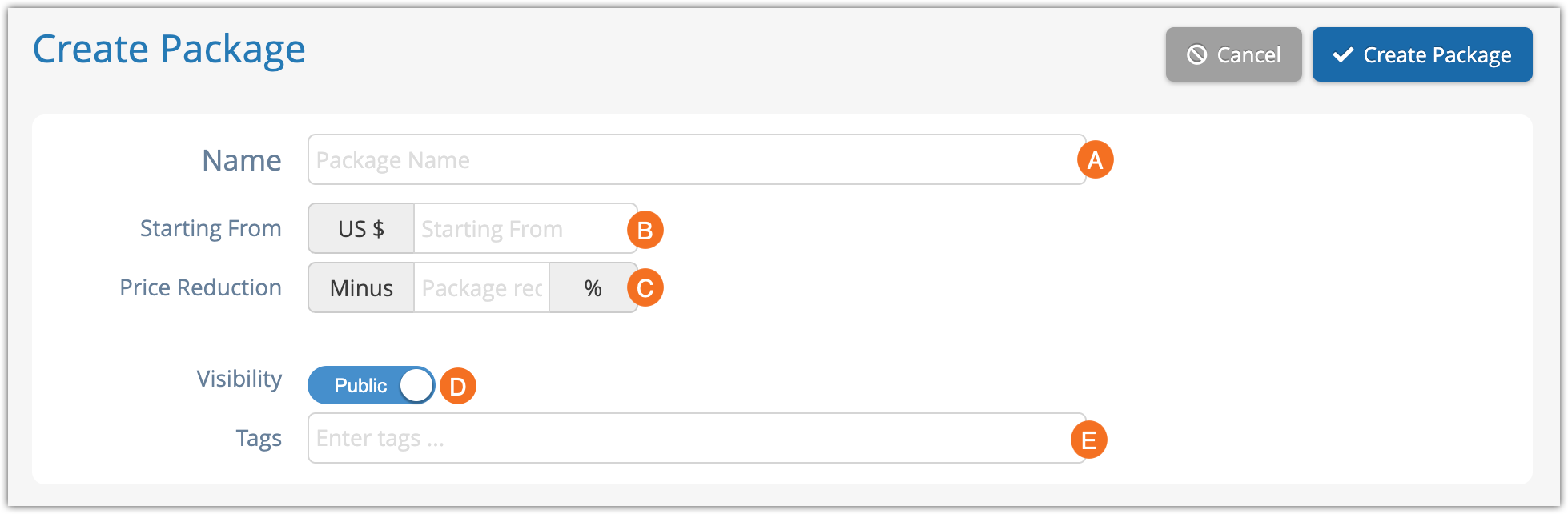
3. Enter a starting price (B). This will be shown on your booking website.
4. Enter the percentage you want the package to be discounted by (C). Every option the customer books in this package will be discounted by this percentage. If you don’t want to offer a package discount, enter 0.
5. Toggle whether the package’s Visibility should be Public (viewable on your booking website) or private (only viewable on the point of sale or with a direct link) (D).
6. Add any Tags you want to include (E). These help identify your item when someone is searching either your point of sale or your website.
Add inventory to a package
Once your basic package details are set up, it’s time to add inventory options to the package. Customers need to book one option from every item in a package, but they can select their own times and dates within the limits you set here.
1. Add your package items by clicking Add Package Item.

2. Select the options you want to include in the package (A).
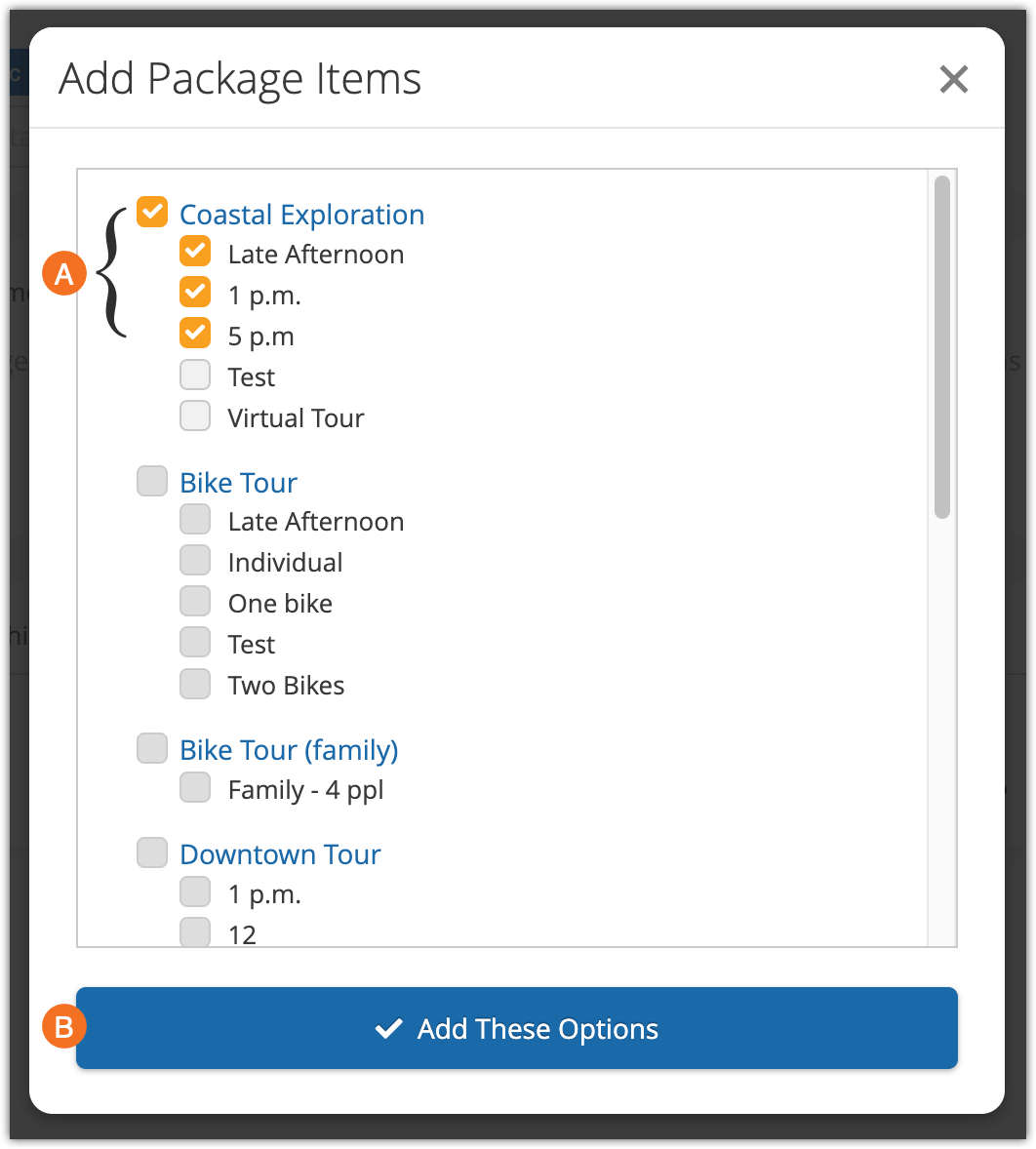
3. Click Add These Options (B). Repeat until you’ve included all the options you want in this package.
Package option bookability
Once you have more than one item in your package, you can select when additional options should be bookable (A).

By default, package options can be booked on any date. However, they can also be set to only be bookable within a set number of days or hours around the first or previous option, or after a set number of days or hours from the first or previous option’s date.
Please note that these settings only apply to front-end bookings, not point-of-sale bookings.
- In the Within field (B), you can enter the number of days or hours around the previous option when this option can be booked.
For example, if the previous option is on Saturday, and you set “Within” to 1 day, this option has to be booked on Saturday or Sunday.
If you leave this field blank, customers will be able to book an option that begins months after the first option’s date. - In the Spacing field, you can enter the minimum number of hours (or days) between the previous option’s booking and this option’s booking.
For example, if a the previous option has a duration of 2 hours, and you set a spacing of .5 hours, options that have start times during those 2.5 hours will be unavailable. Options that have a start time after those 2.5 hours will be available.
If you leave this field blank, customers will be able to book an option that begins immediately after another selected option’s duration ends.
Remove and reorganizing options
You can remove options from a package item by clicking the X button next to them.
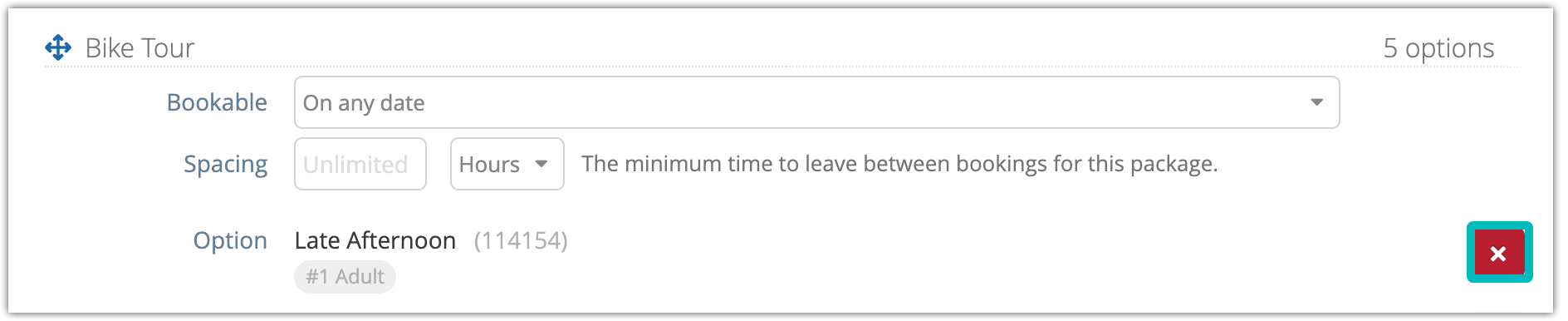
You can reorder the items in your package by dragging the arrow next to the item name.

About package price tiers
The first inventory option you add to the package determines the package’s available price tiers. For example, if the first option you add to the package has three price tiers–let’s say Adult, Child and Senior–those are the price tiers that will be available when booking the package.
It’s important to make sure all the options included in the package share the same price tiers. If you add additional options with missing price tiers–for example, an option that only offers Adult and Child, but no third tier–the system will warn you because the package won’t be valid.
However, if you include an option with the same number of price tiers but applied in a different order–for example, Adult, Senior then Child, instead of Adult, Child then Senior–the system won’t know that you have a mismatch. Please make sure that all the options included in your package have matching price tiers listed in the same order.
Finalize your package
Fill out any further information you want to include. These details affect how your packages will be displayed on your booking website and how search engines will display them.
- Details are spaces for any additional details you’d like to share with your customers.
- SEO Title is the name that will be provided to search engines.
- Meta Description is the description of your item that will be provided to search engines.
- Images are any pictures you’d like to use to show off your tour. These should be at least 1280 px by 720 px.
- Cross-Sell Inventory is inventory you’d like to suggest to customers in the checkout process when they book this package.
Any other requirements for the activities in the packages, like waiver status and notifications, will be set in the individual items and options.
2. When you finish adding details to your package, click Create Package.
3. If you want your package to be bookable on your booking website, click Publish.
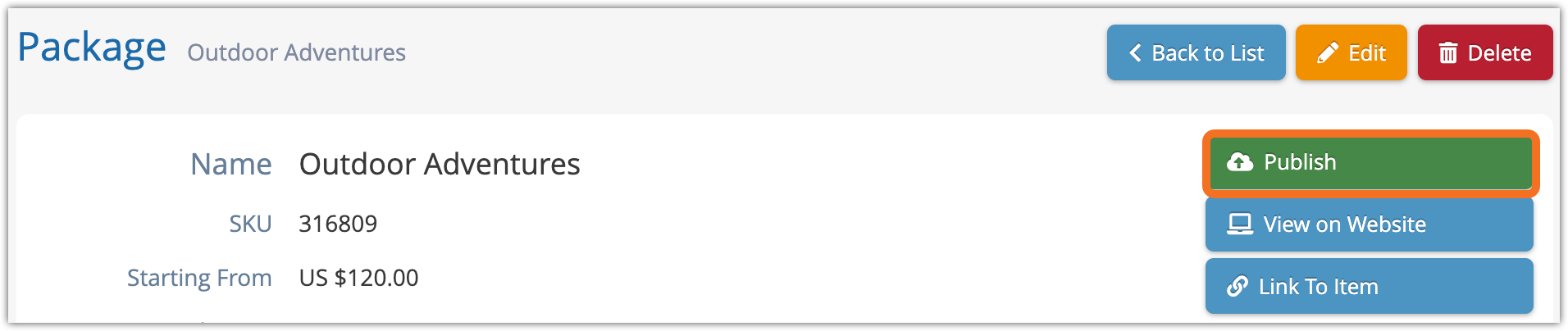
4. Click OK to confirm that you want to publish the package.