


How to add new email notifications
You can create email notifications to be sent in a variety of situations–when a new booking is made, scheduled for a number of days before or after a booked-for date, and when a booking’s status is changed.
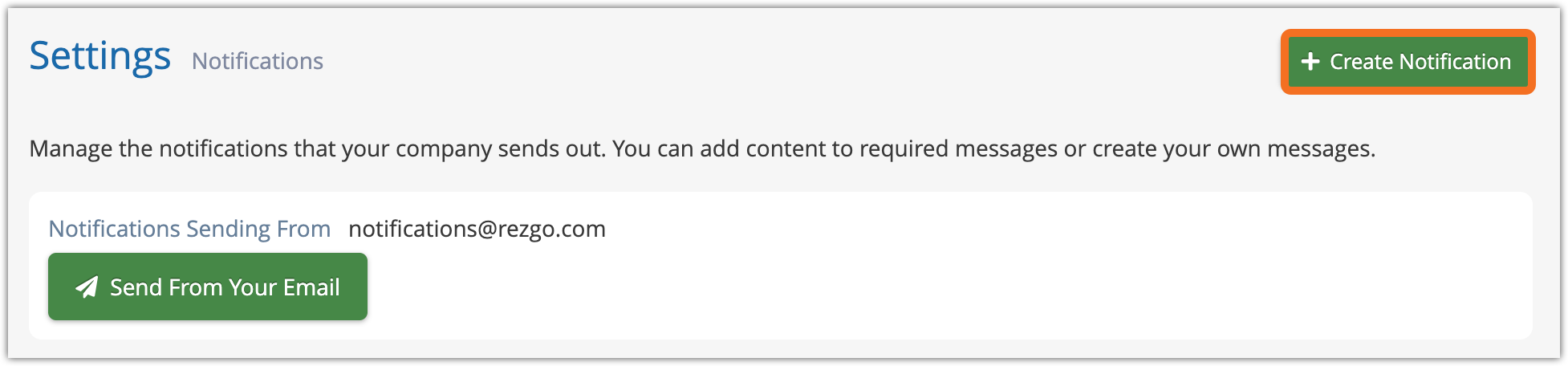
First, navigate to Settings in the main menu and click Notifications You Send.
1. Click Create Notification.
2. Enter a name for the notification (A).

3. If this notification should be sent automatically when it’s triggered, leave the Active toggle (B) on. If it should be manually sent, or you don’t want to use it yet, toggle it off.
If a booking is made on the POS, notifications need to be triggered from the booking before they’ll be sent.
4. In the dropdown labelled When, select the condition for sending the notification (A). For example, when a new booking is made, when it’s a certain number of days before the event, or when the booking’s status changes.
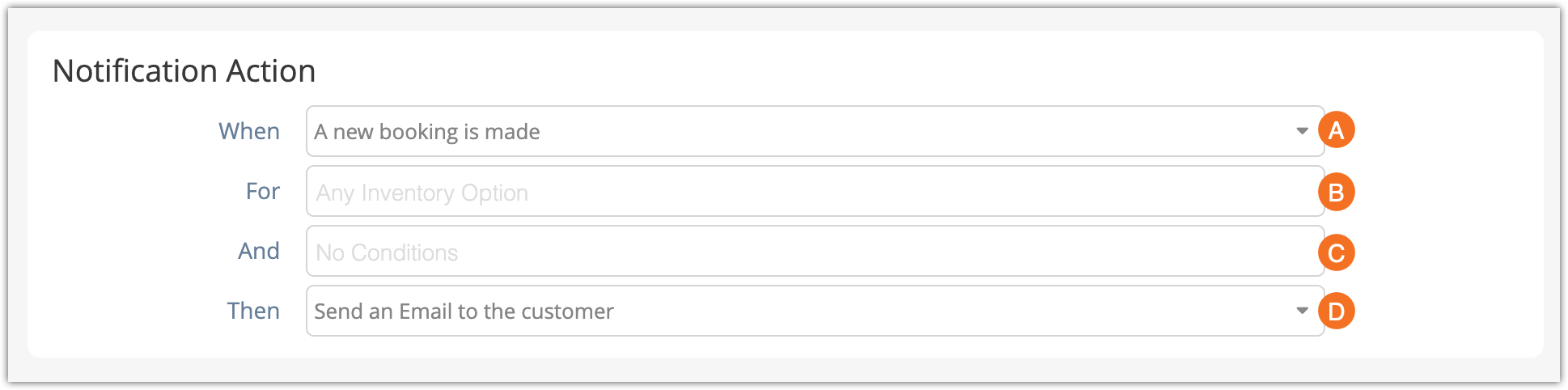
5. In the dropdown labelled For, select the inventory option(s) this notification applies to (B). If it applies to all options, leave this field blank.
6. In the dropdown labelled And, select any additional conditions (C). For example, if the booking’s waivers are unsigned.
7. In the dropdown labelled Then, select what kind of notification is sent out (D). For email notifications, you should use “Send an Email to the customer” or “Send an Email to these addresses.” For the latter, enter the email addresses of the recipients separated by commas.
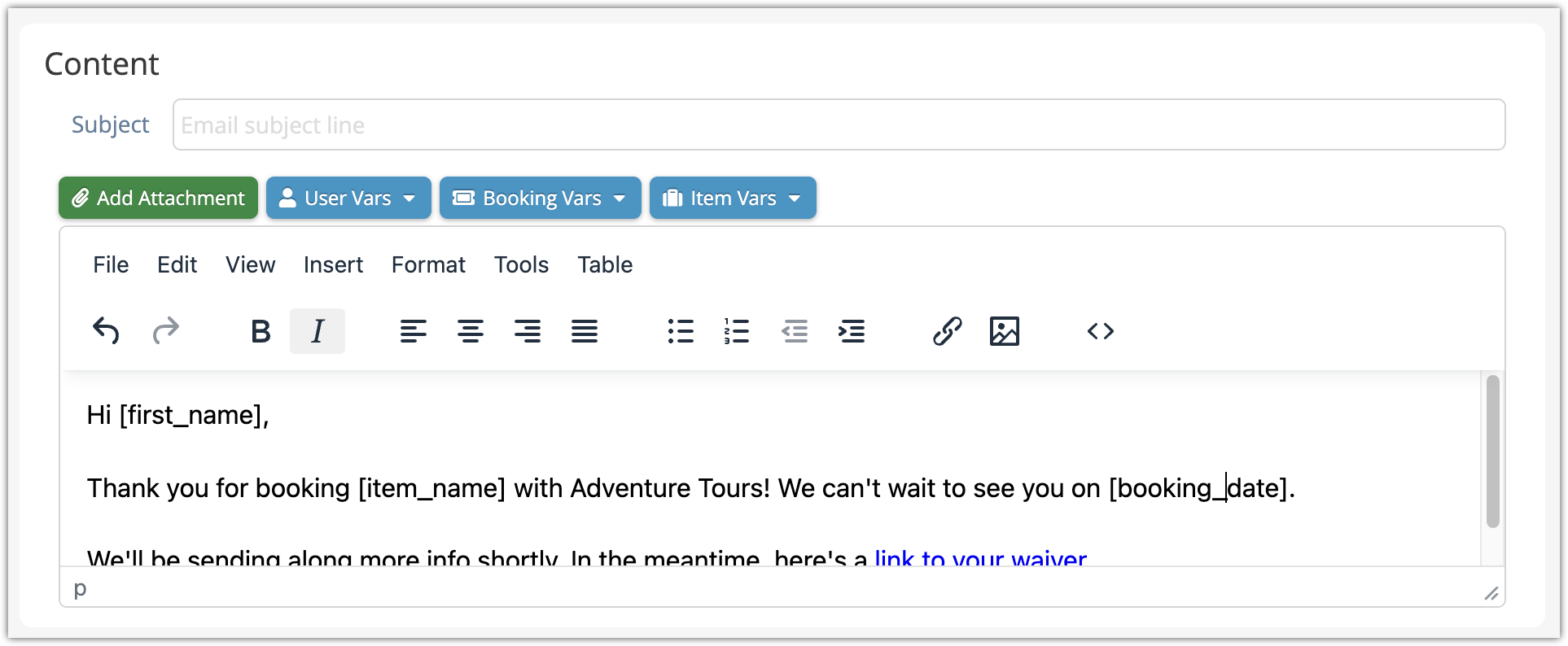
8.Enter the message content. You can find more information about customizing notification contents here.
9. Click Create Notification.