


How to switch analytics tracking modes
If you’re moving over to Rezgo’s enhanced ecommerce tracking, you will eventually need to enable the new tracking method.
Do not do this before you’ve set up the new analytics recipes as discussed in our guide. If you toggle this switch before you’ve set up your new analytics, your analytics tracking will be paused, and new bookings won’t be tracked at all.
Want to know more about the specific order you should implement your new tracking process? Learn more here.
After you’ve set up the new recipes, you can test that they’re working correctly before toggling the switch. During this period, note that both sources of analytics may fire, and your bookings may be double tracked.
Once you’re sure you’re ready to move forward with the new tracking method, you can enable the toggle to switch fully to the enhanced analytics recipes.
How to enable enhanced tracking
First, go to Settings > Analytics.
Click the Use Analytics Recipes toggle to enable it.
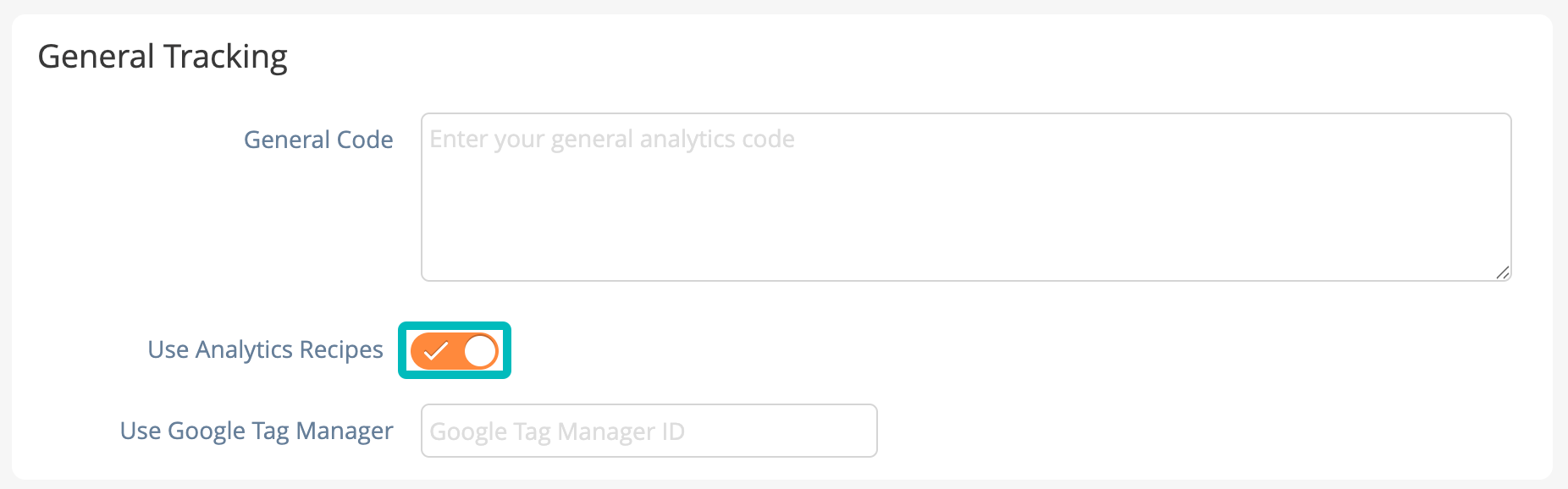
Once that’s done, your previous analytics tracking will be paused, and your new recipes will take over. Keep an eye on the results to ensure that your tracking is proceeding correctly.
If you’d like to know more about how this toggle works, or what to do if you’ve toggled methods at the wrong time, see this article.