


How to add or remove tags for inventory items
You can add tags to inventory items to make them easier to find in the future. These tags, which work similarly to labels, can be used to indicate anything about the inventory items. They also make it easy to search your inventory–you can filter your search by tag to find inventory more quickly, and filter your front-end listings by tags to make it easier for customers to find the kinds of experiences they’re looking for.
1. Go to the edit page of the inventory item you want to tag.
2. Enter your tags in the Tags field. They can be separated by commas and can include spaces.
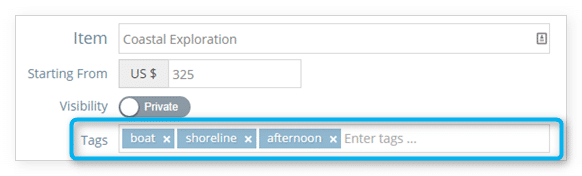
3. Click Save Changes.
If you want to remove a tag from an inventory item, simply click the X in the corner of the tag in this list before clicking Save Changes.

Use tags to filter inventory on your Rezgo website
If you want customers to be able to see all inventory that matches a specific tag, you can link directly to specific tags to list all inventory items that include that tag.