


How to create rules for group bookings
To create a rule that makes changes to your inventory based on the number of people that book in a group, you can use the Passenger Count condition.
This condition triggers on the number of passengers in a single booking. For example, if you want to offer a discount to any groups that book with five or more passengers at once, you would use the Passenger Count condition to trigger on a passenger count greater than or equal to 5, and the Set All Prices action to decrease price points by your discount amount.
To use the Passenger Count condition in a rule, follow these steps:
1. Navigate to Inventory > Rules in the main menu.
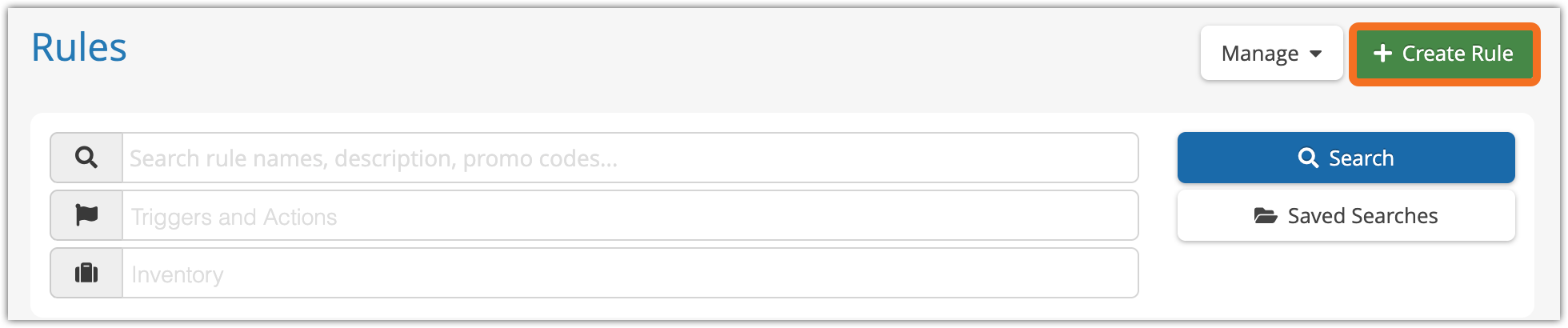
2. Click Create Rule.
3. Give your rule a name that’s easy to recognize (A), and a description of what it will do (B).
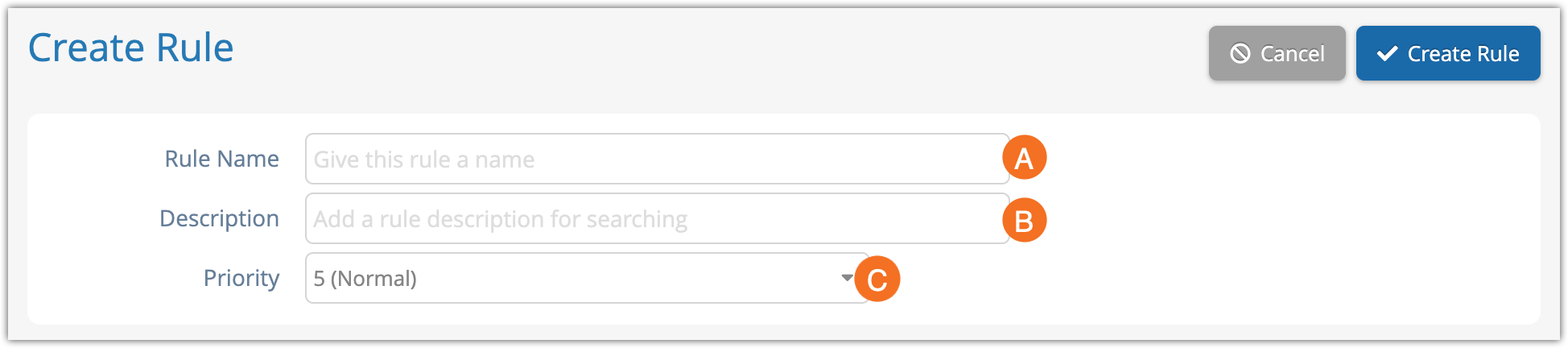
If you have multiple rules that need to be applied in a specific order, you can also set a priority on the rule (C). The highest priority rule will take effect last, so it will be applied after lower priority adjustments or discounts that apply to the same order.
4. Click Add Condition.

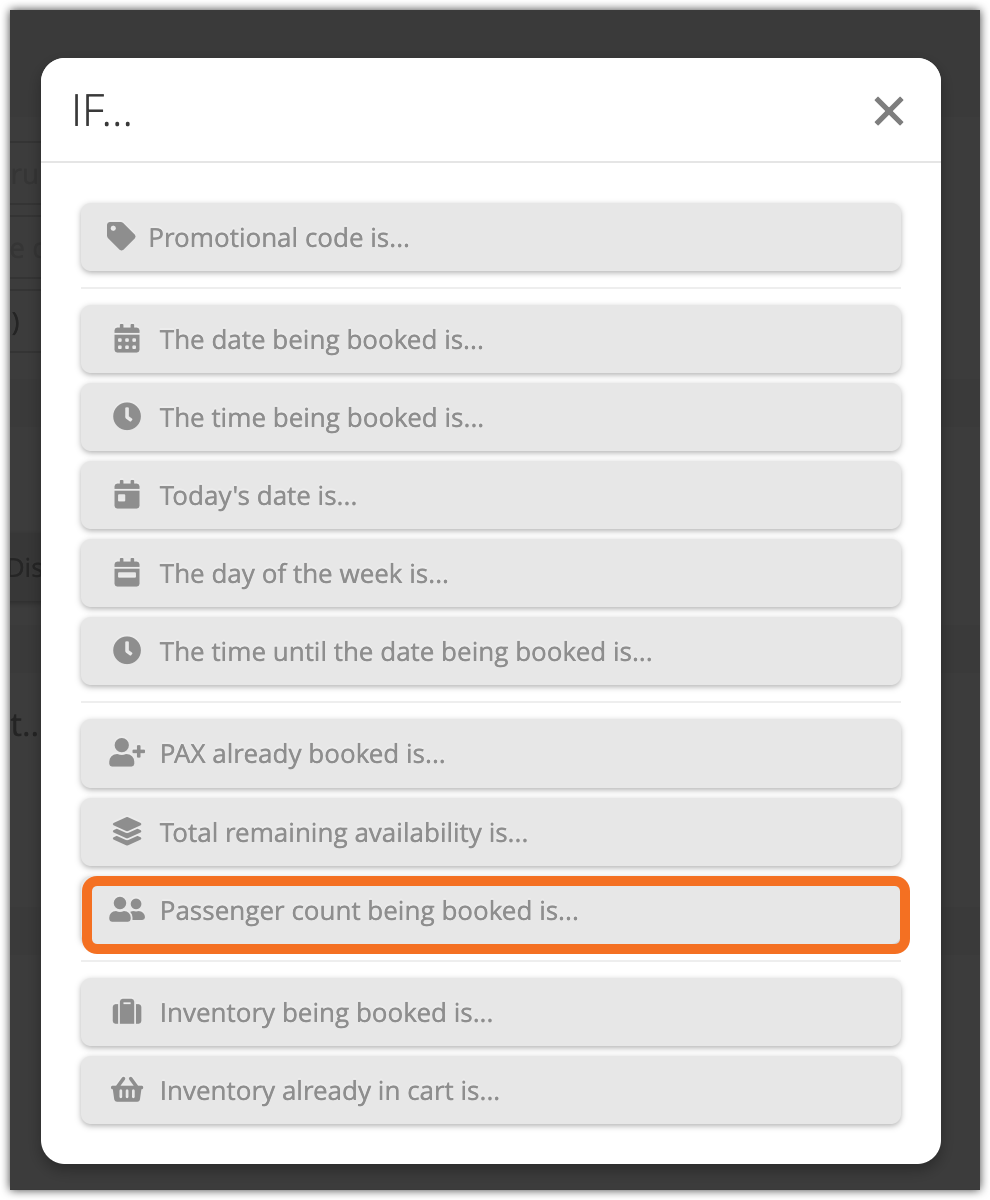
5. Click Passenger count being booked is...
6. Enter the range of passengers being booked at once that will trigger this rule.
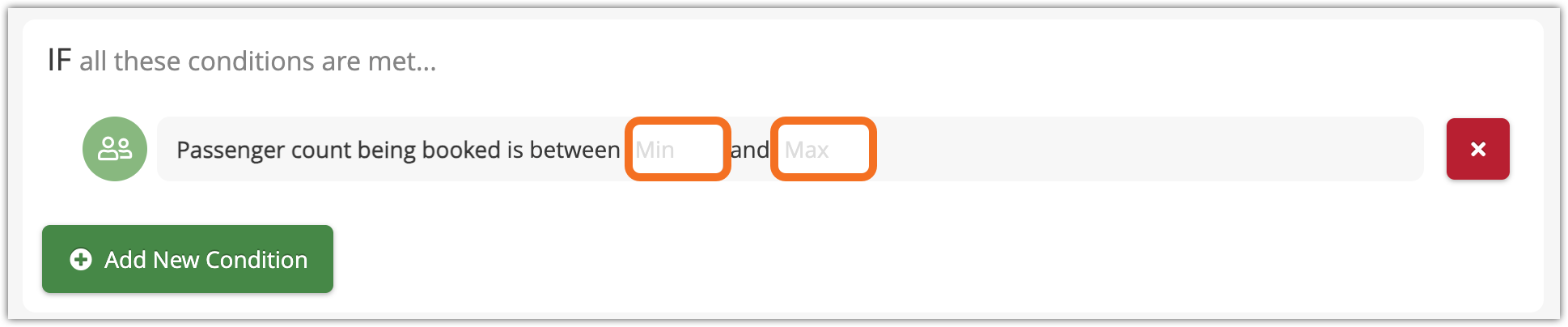
If you leave the first field blank, the range will be lass than or equal to the number in the second field.
If you leave the second field blank, the range will be greater than or equal to the number in the first field.
7. Add any other conditions and actions the rule should have.
8. Click Create Rule.