


How to assign or remove resources on a booking
You can assign resources to bookings automatically by connecting them to inventory, but you can also adjust resources on bookings that have already been made. You can add a guide to a booking this way, swap out a rental, move passengers between vehicles, and more.
If you need to manage a lot of resources for a lot of events at once, you can also do that from the dispatch manager or daily manifest.
To get started, go to the booking’s details page.
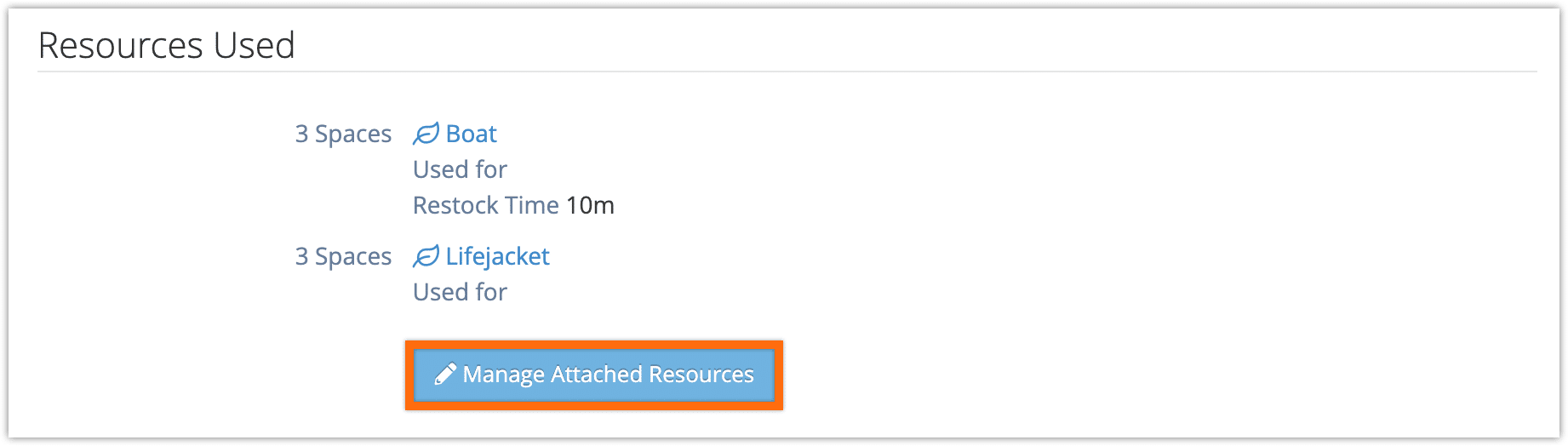
Then click Manage Attached Resources under the Resources Used heading.

Add a new resource to a booking
1. Find the resource you want to add to the booking in your resource list, or search your available resources.
2. Click Add next to the resource.
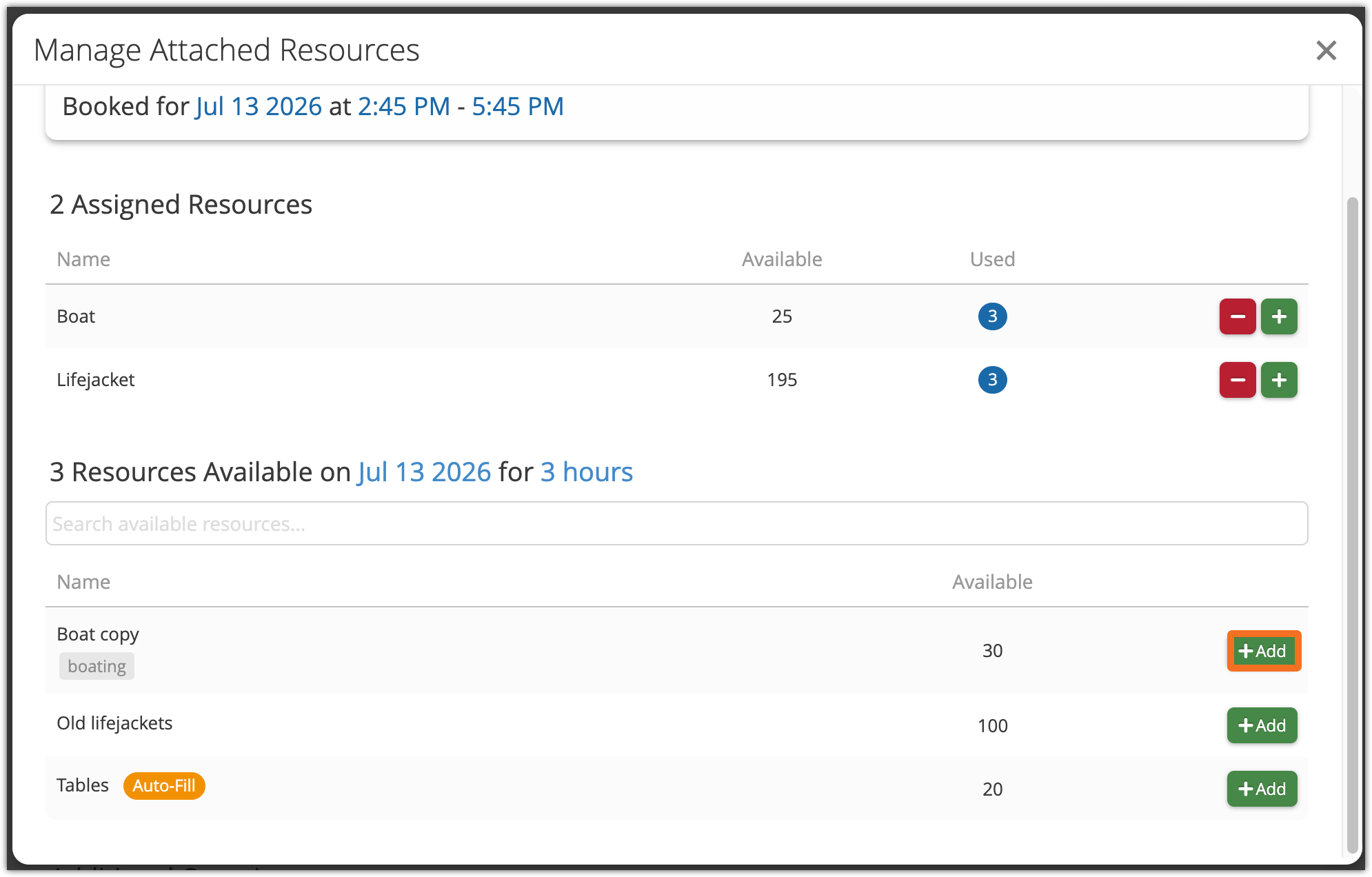
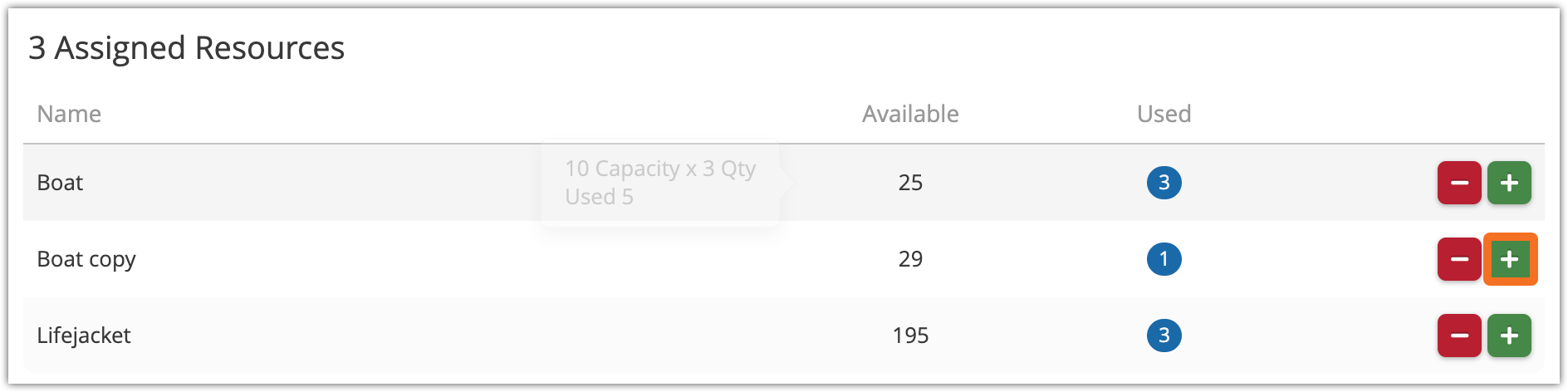
3. Make sure the added resource has enough capacity for your booking. Click the plus button next to the resource to add more.
Increase a resource assigned to a booking
You can increase the quantity of any resource assigned to a booking.
1. Find the resource you want to increase in your list of assigned resources.
2. Click the plus button next to the resource.

Remove an assigned resource from a booking
Finally, you can decrease the quantity of a resource assigned to a booking or remove it entirely.
1. Click Manage Attached Resources under the Resources Used heading.
2. Find the resource you want to remove in your list of assigned resources.
3. Click the minus button next to the resource.

If you want to completely remove the resource from the booking, keep clicking the minus button until the resource is removed from the assigned resources list.