


Mastercard Payment Gateway Services/Sathapana Bank
Mastercard Payment Gateway Services (MPGS) is integrated with Rezgo to allow clients in Cambodia to take online payments for their bookings. It is currently available through Sathapana Bank.
Visit Sathapana Bank to learn more about their Direct Gateway integration.
This integration allows your customers to pay directly through your Rezgo site and lets you take payments and send payment requests through the Rezgo point of sale for back-office bookings.
MPGS Integration Features
- Card Not Present/MOTO Transactions: Yes
- Preauthorization: Yes
- Refunds: Yes
- 3D Secure Support: No
- EMV Terminal Connection Through Rezgo: No*
*You can still take payment for Rezgo bookings with payment terminals. Learn how here or talk to our team for details.
Sign Up With Sathapana Bank
If you need to accept credit cards for your business and you are located in Cambodia, visit the Sathapana Bank website to learn how to apply for an account: Get Started with Sathapana Bank
Set Up Your Credentials
Once you’ve successfully set up an account, you can talk to the Sathapana Bank support team to learn how to get your credentials. To use the MPGS gateway with Rezgo we require the following information from your account:
- Merchant ID
- API
Attach the Gateway to Rezgo
Copy and paste this information into your Rezgo account by following these instructions:
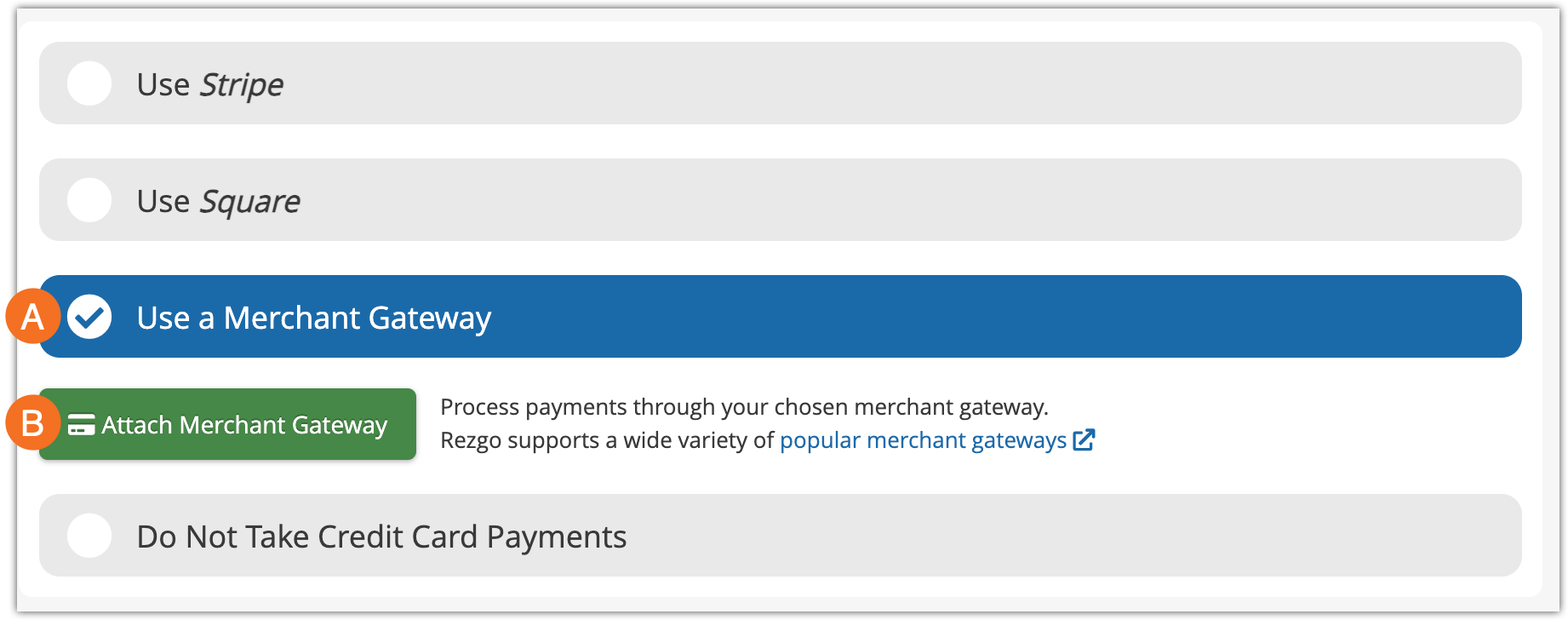
1. Go to Settings in the main menu and click Payments You Accept.
2. Click Use a Merchant Gateway (A) and then Attach Merchant Gateway (B).
3. Select Mastercard Payment Gateway Services from the list of supported gateways.
4. Enter your Merchant ID(A) and your API (B). Then select which credit cards you’d like to accept (C).
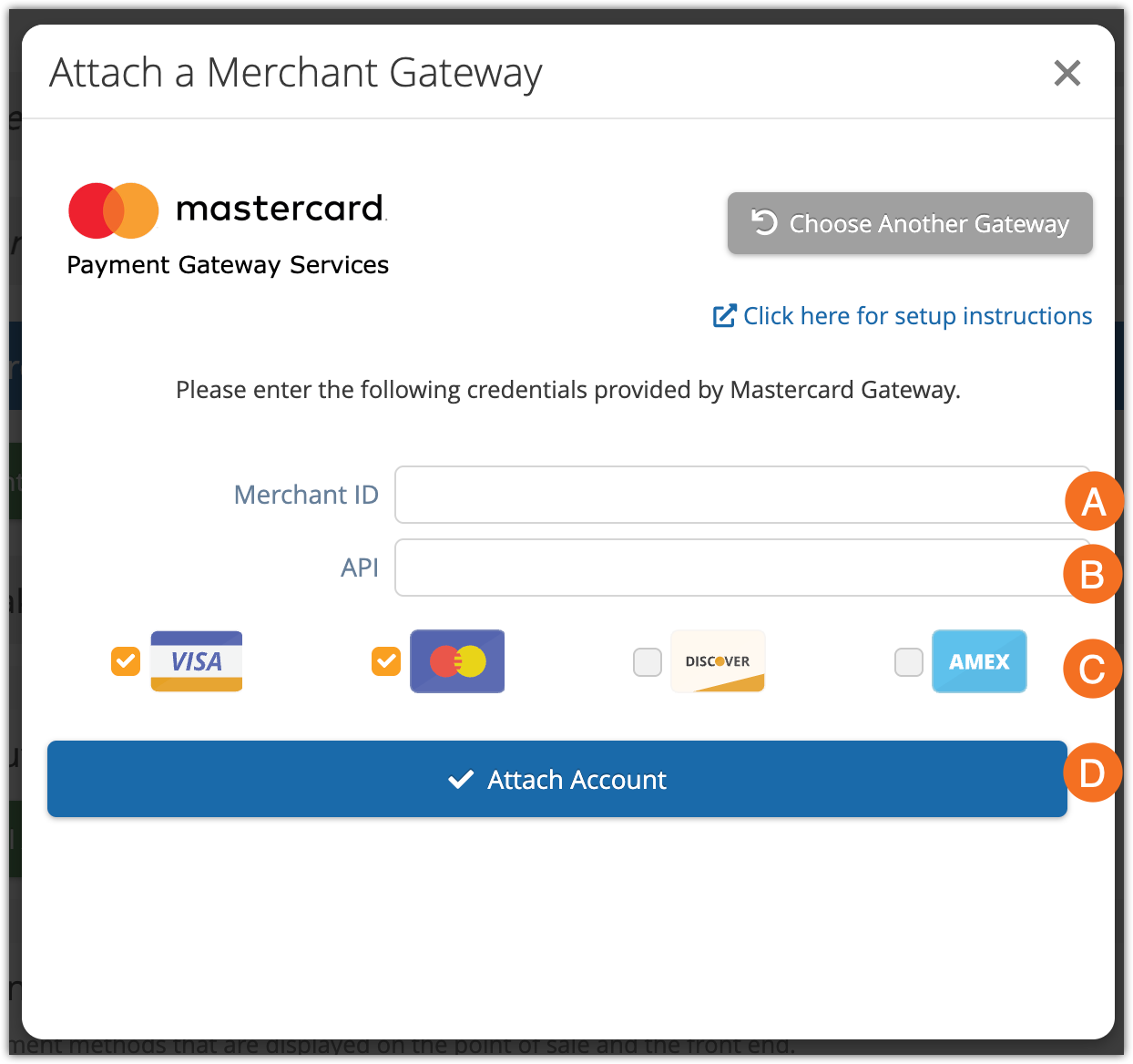
5. Click Attach Account (D).
If the connection succeeds, Rezgo will show a success message similar to this:
