


How to refund a booking, order or invoice
After you cancel a booking or order, you will need to refund the customer. You can also refund invoices if needed. Here’s how:
Refund bookings or orders
To refund a website booking or order, find the booking you want to refund in your booking list (or go straight to the order).
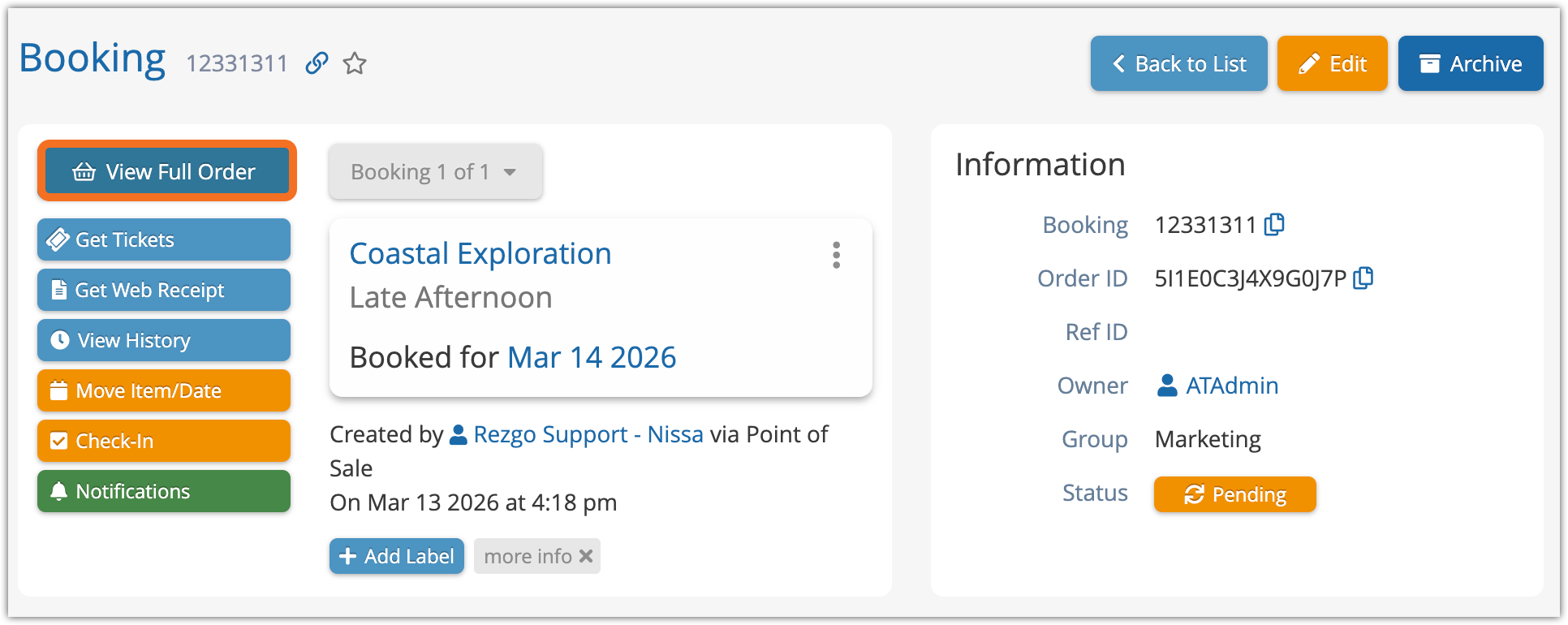
1. From the booking, click View Full Order (If you’re refunding a POS booking with a transaction on the booking itself, you can skip this step.)
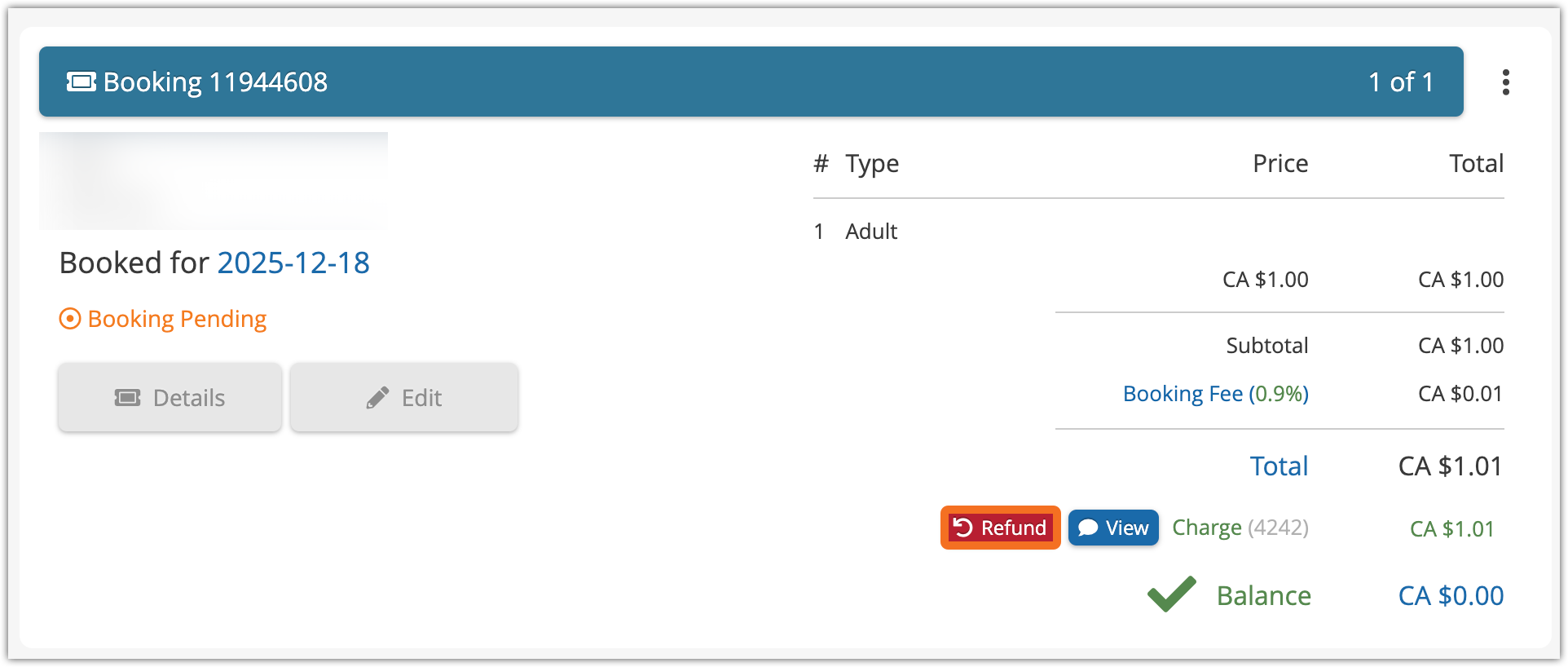
2. Click Refund next to the transaction you want to refund.

3. Check that the details are correct.
- Credit Card should be selected under Method (A).
- The transaction type should be Refund (B).
- The full amount of the transaction should be listed (C). If this is a partial refund, you can change the amount.
- Make sure the correct transaction is selected (D).
4. Enter any additional information or comments (E).
5. Click Enter (F)
Refund to a gift card
All payment types can be refunded to gift cards.
First, visit the booking that needs to be refunded.
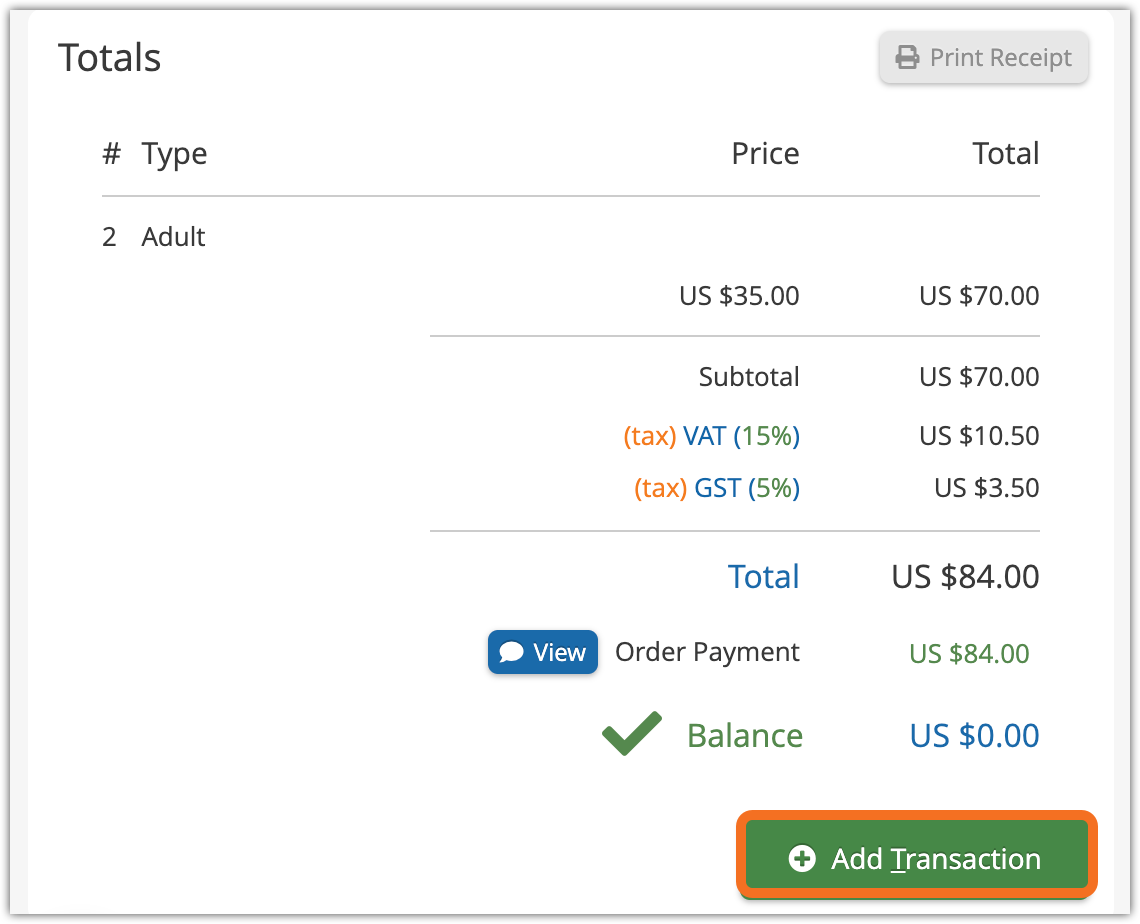
1. Click Add Transaction.
2. Enter the customer’s information in the billing information for your records, if needed.
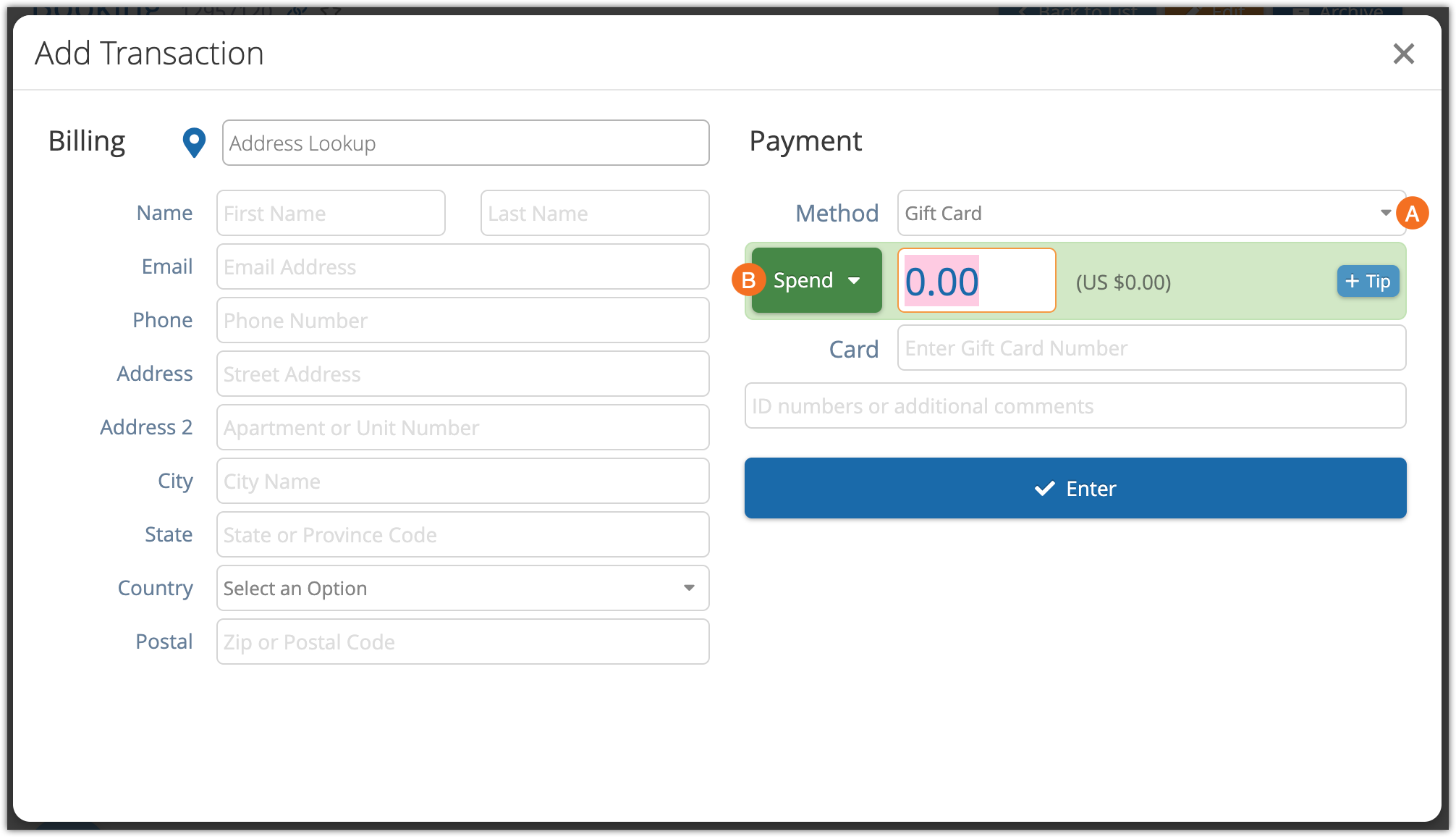
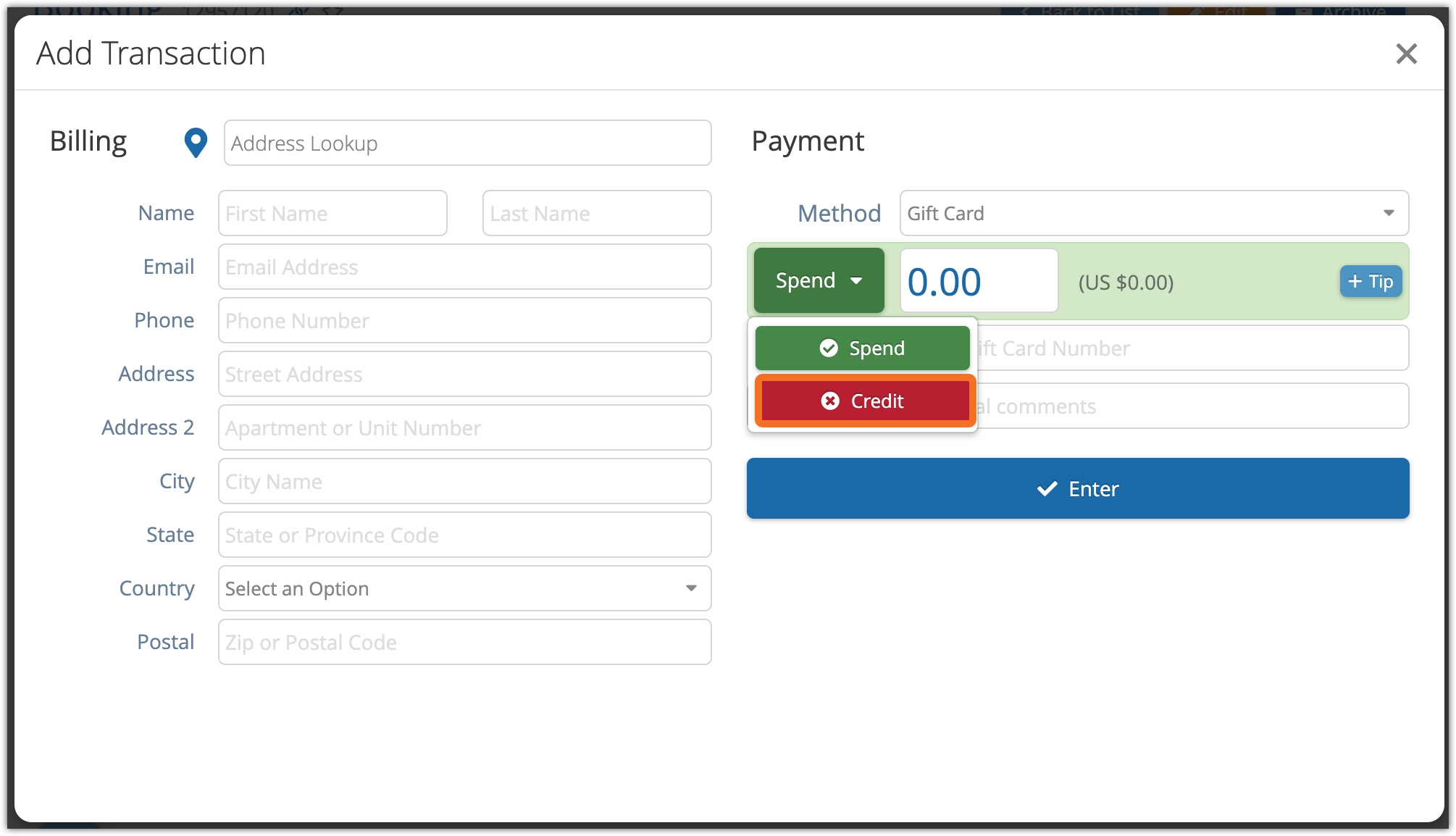
3. Under Method (A), select Gift Card.
4. Click Spend (B).
5. Select Credit
6. Enter the amount to be credited (A).

7. Select whether the new gift card should be emailed to the billing contact of the booking (B). You’ll need to enter an email address in the billing details if you haven’t already.
8. Enter any additional IDs or comments (C).
9. Click Enter (D).
Refund a non-credit card transaction
1. Navigate to the booking, order, or invoice’s details page.
2. Add a negative transaction for the amount to be refunded.
Refund on a payment gateway without refund support
If your payment gateway does not support refunds, add a negative transaction, but DO NOT process the transaction through your gateway. If you do, the customer will be double charged.