


How to view your resources’ usage
When you’re rostering resources or planning your week, it can be helpful to see where your resources are booked.
There are two places to get a quick, interactive view of your resource usage: from a resource’s details page, and from your resource schedule.
(You can also create a resource usage report if you need the information for your records.)
See an individual resource’s usage
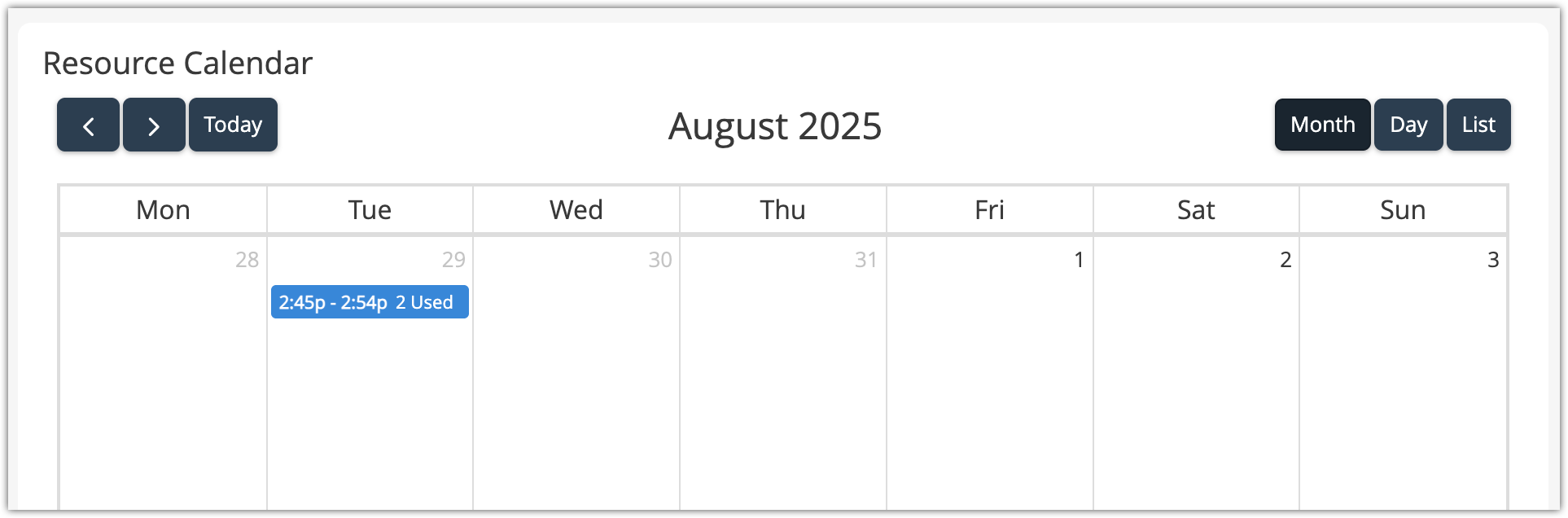
To see an individual resource’s usage, go to its details page.
From there, scroll down to the Resource Calendar. This lets you see when a staff member, vehicle, or other resource will be needed.
See every resource’s usage
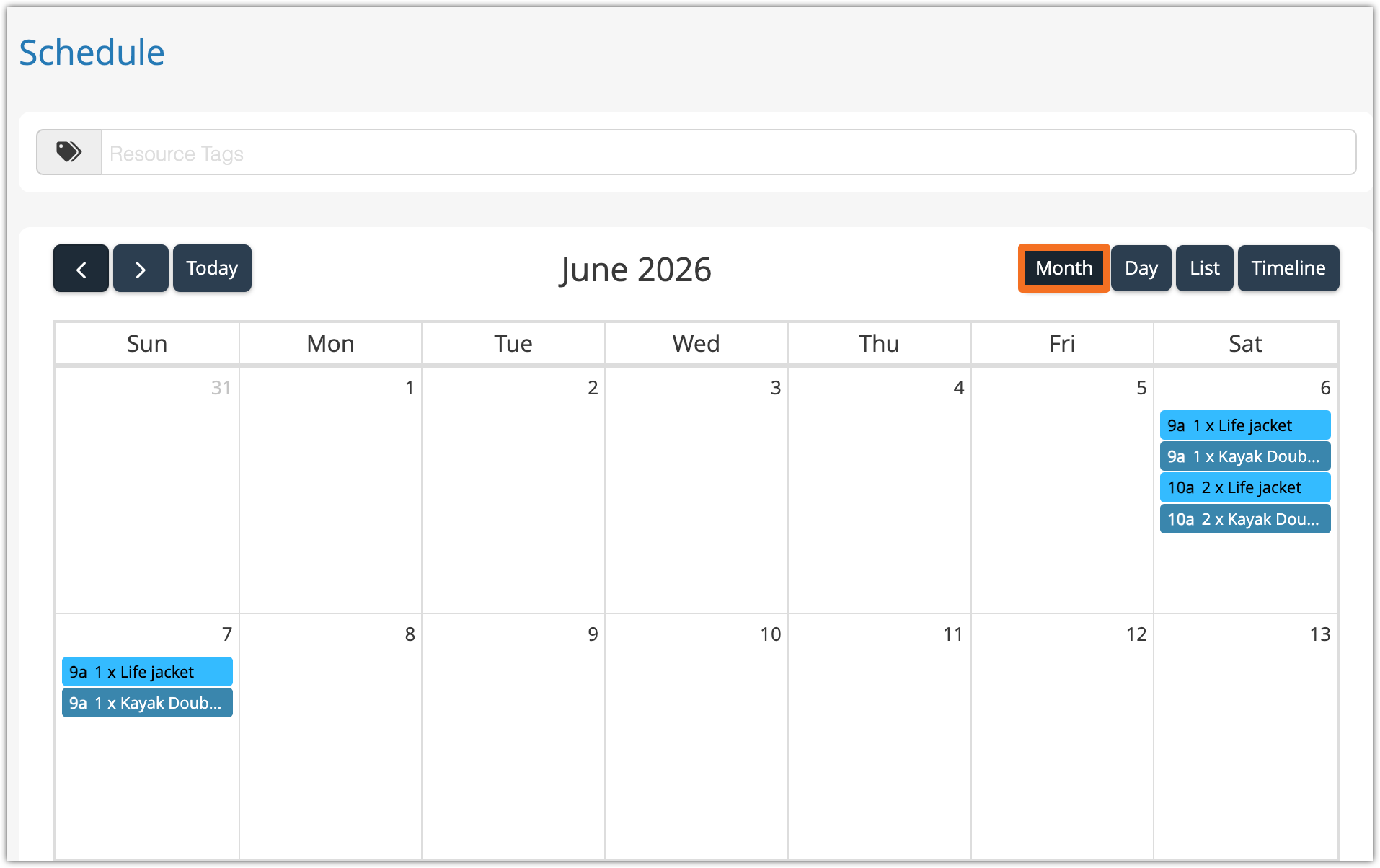
If you want to see all your resources at a glance, you can view your schedule under Resources > Schedule in the main menu.
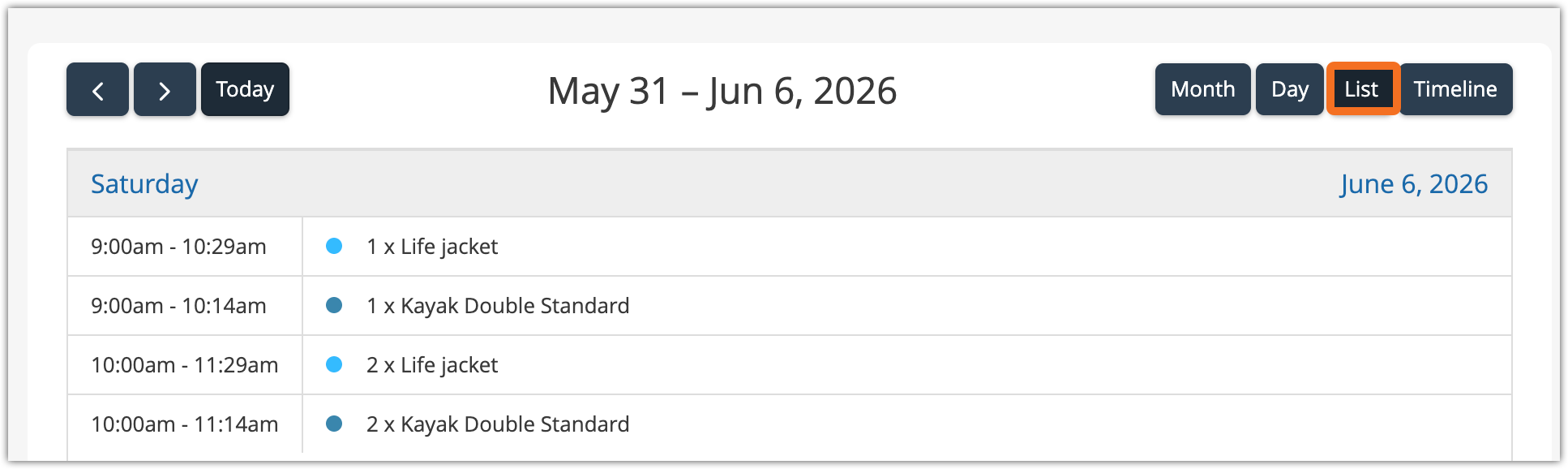
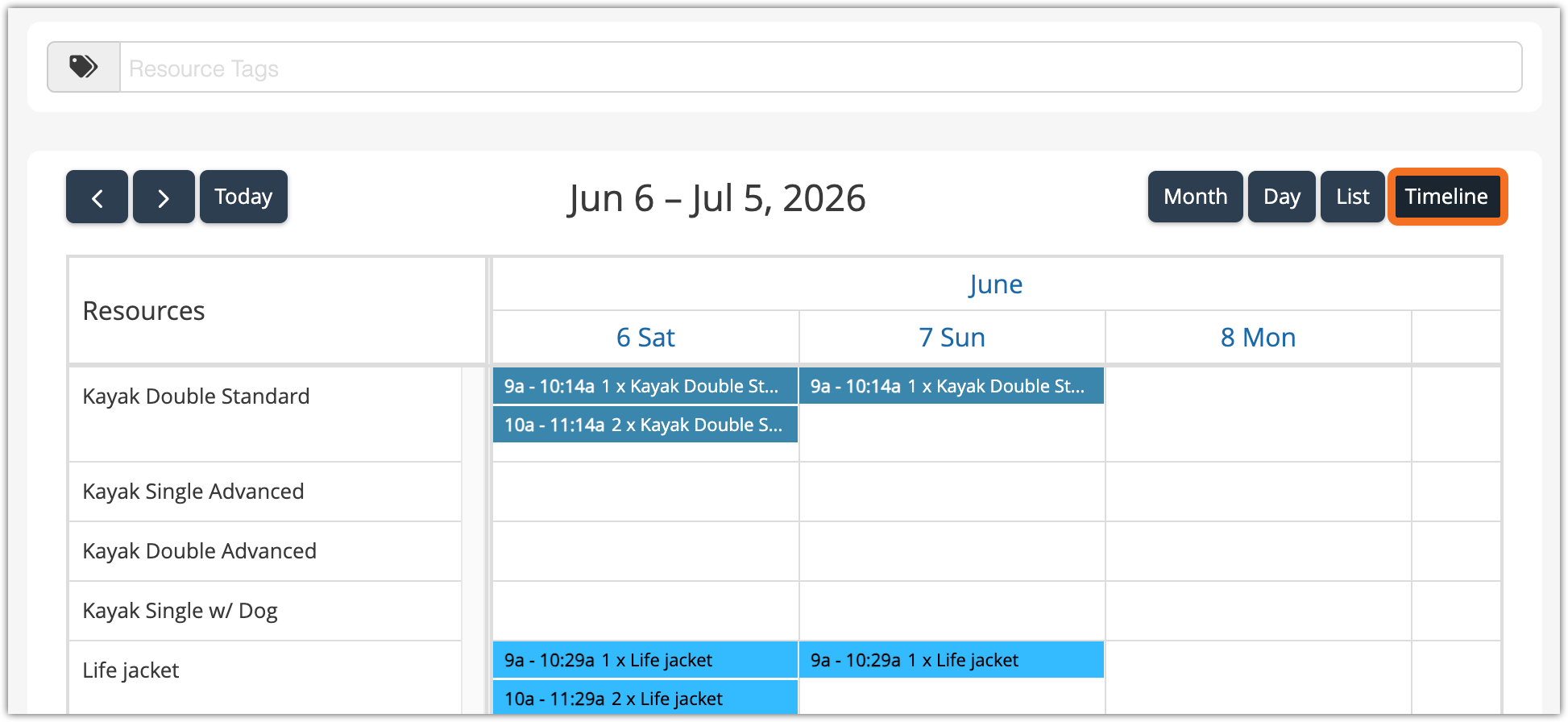
This lets you see all your used resources in a few convenient views:
The Month view lets you use all your used resources in a calendar month:
The Day view shows you your resource usage in time blocks for the day:

The List view shows you the a week’s resource usage in a easy-to-read list:
And the Timeline view shows your resource usage over an ongoing timeline:
Next steps
If you need to make adjustments to your resource availability, see our article on adjusting resource availability. If you want to adjust resource usage by adding or removing attached resources from a booking or event, you can do that from the booking, or the dispatch manager, or the daily manifest.