


Knowledge Base
How to copy booking fields and labels between options
Once you create booking fields or labels for one option, you can easily add them to any other option.
1. Navigate to the option’s details page.
2. Click Copy Data.
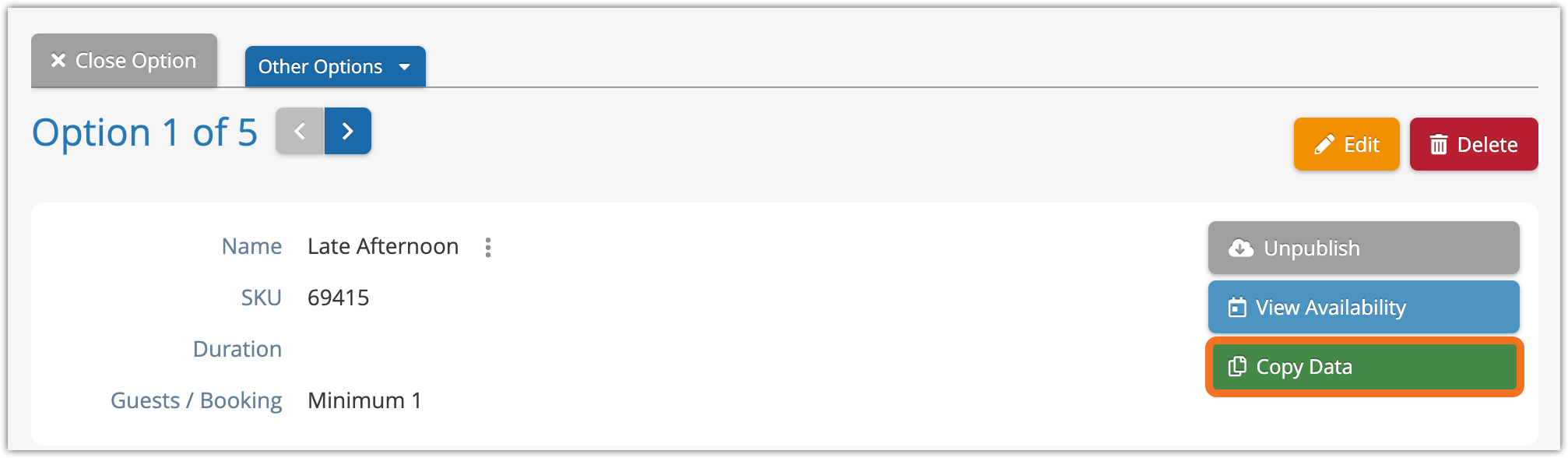
This brings you to the Copy Data window.

3. Choose whether you want to copy forms or labels.
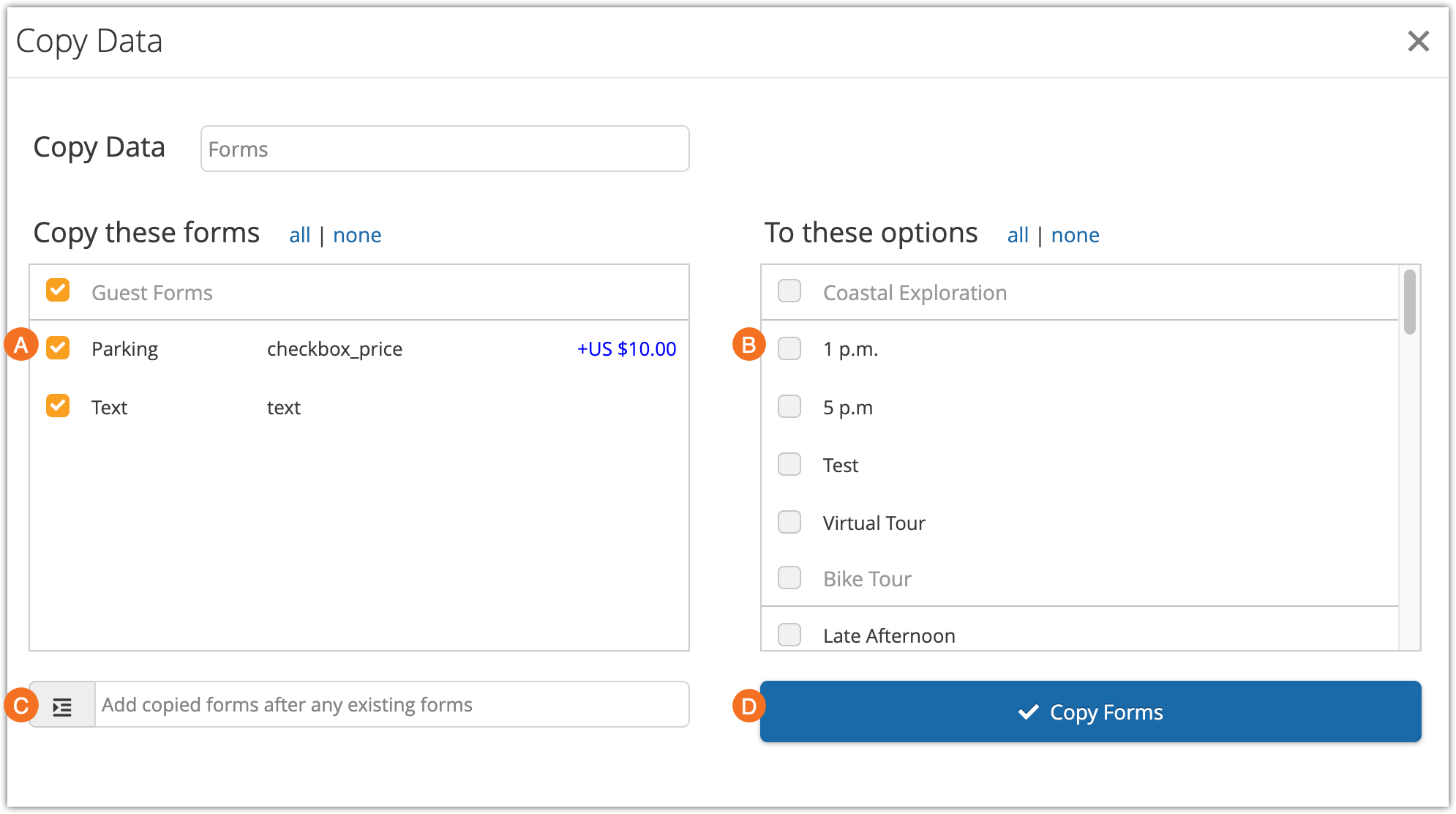
1. Choose which forms or labels to copy (A) by clicking the checkboxes next to them.
- You can click all to select all the forms or labels, or none to deselect everything and start over.
2. Click the check box beside the options you want to copy the forms or labels to.
- If you want to copy forms or labels to all options in a single inventory item, click the check box beside that inventory item. You can also select all or none.
3. Choose whether you want to replace the existing forms/labels on the selected options with the ones you’re copying, or add them with the existing forms/labels (C).
4. Click Apply Changes (D).